

Sky Replacement Online: 12 Skies, from Clear Blue to Storm Clouds
Swap a white or washed-out sky for one of 12 new ones: sunsets, storm clouds, and blue daytime skies with different kinds of clouds. Facelab's sky replacement tool finds the sky in your photo, keeps people in front of it, and blends the new sky in along soft edges, all in your browser.
Drop your photo here
JPG, PNG, WEBP, HEIC · up to 25 MB
Get 25+ AI-powered editing tools, filters, and creative effects — free on iOS and Android.


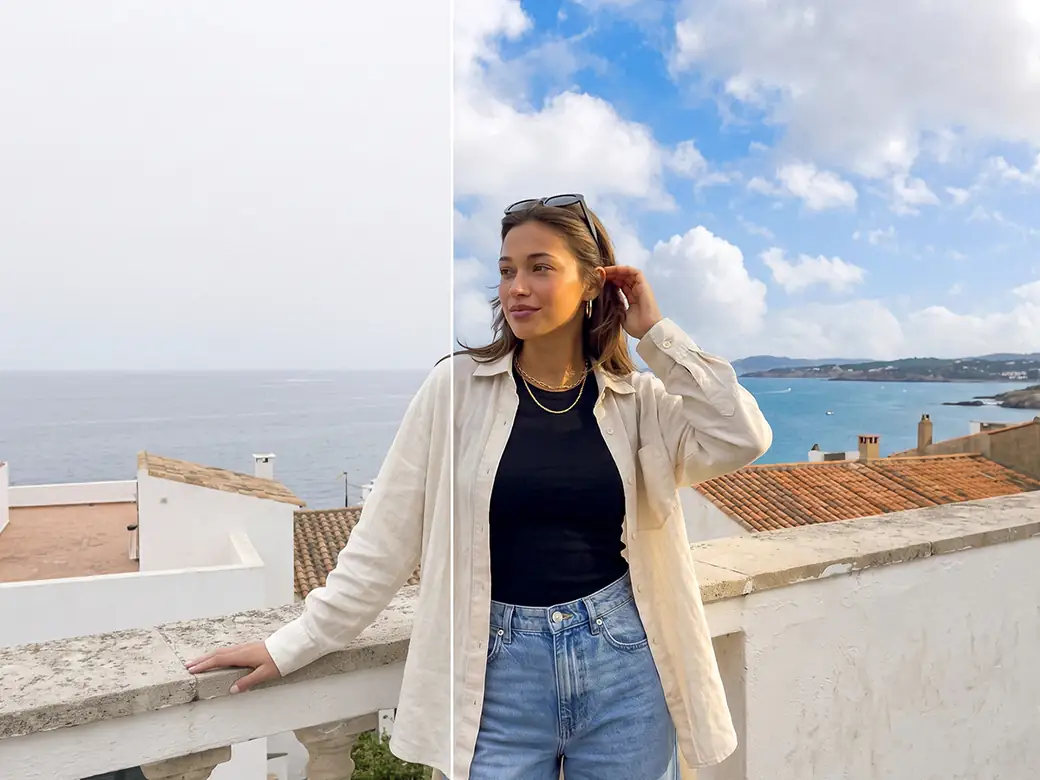
There's nothing to install, and no sign-up is needed to try it. Use it to rescue a travel photo taken under an overcast sky, put a sunset behind a portrait, or give a city shot a darker, stormier mood.
How to Replace the Sky in a Photo Online

Step 1
Upload Your Photo
Choose and upload a JPG, PNG, or WEBP file. No account is needed to start.

Step 2
Pick a Sky
Tap any of the 12 skies. The tool detects the sky, replaces it, and leaves people, buildings, and trees where they were.

Step 3
Fine-Tune the Blend
Sky opacity sets how fully the new sky covers the old one. The photo filter tints the whole picture with the colors of the new sky. Scale and Rotation change the size and angle of the clouds.

Step 4
Check the Edges, Then Download
Zoom in on rooftops, branches, and hair. When the edges look clean, apply the edit and save it as PNG, JPEG, or WebP.
If a sky looks pasted on, try a Photo filter before switching to another one: a color mismatch is often the whole problem.
Explore more Facelab tools
AI Make Up Editor
Apply virtual lipstick, eyeshadow, and blush instantly.
Open Tool →AI Hairstyle
Try any hairstyle and color — from subtle to bold.
Open Tool →Object Remover
Erase unwanted objects from photos with AI precision.
Open Tool →Background Remover
Remove any background in seconds with AI precision.
Open Tool →Watermark Remover
Erase watermarks and logos from any image instantly.
Open Tool →AI Teeth Whitening
Brighten your smile with realistic whitening in one tap.
Open Tool →Eye Color AI Editor
Change eye color naturally — any shade, any photo.
Open Tool →Image Upscaler
Enlarge photos up to 4× without losing quality.
Open Tool →Body Editor
Slim, reshape, or adjust body proportions with AI tools.
Open Tool →Skin Retouch
Smooth skin, reduce blemishes, perfect your complexion.
Open Tool →Face Shape Editor
Subtly reshape facial features with natural precision.
Open Tool →Resizing Image
Resize photos to any size without quality loss.
Open Tool →Instagram AI Photo Editor
Edit photos for Instagram with one tap AI presets.
Open Tool →Sky Replacement
Swap a dull sky for a sunset or storm clouds.
Open Tool →Background Blur
Blur the background like a portrait lens, or add bokeh.
Open Tool →Light Effects
Add light leaks, flares and a warm glow.
Open Tool →Photo Textures
Lay film grain, dust or paper over any photo.
Open Tool →Photo Color Correction
Fix exposure, color and tone with 16 dials.
Open Tool →12 Skies for Different Weather
The skies aren't split into sets, so all 12 appear in one grid:
- Sunsets: pink and violet evening skies and a fiery orange-gold one
- Storms: heavy gray clouds, one of them with rain visible underneath
- Daytime blue: small puffy clouds, high wispy streaks, soft pastel clouds, or big cumulus
- Sunbeams: rays of light breaking through the clouds
Presets are labeled N1 to N12, so choose by the thumbnail. All of them are daytime or evening skies, and none has stars, so a night photo is better off keeping its own sky.
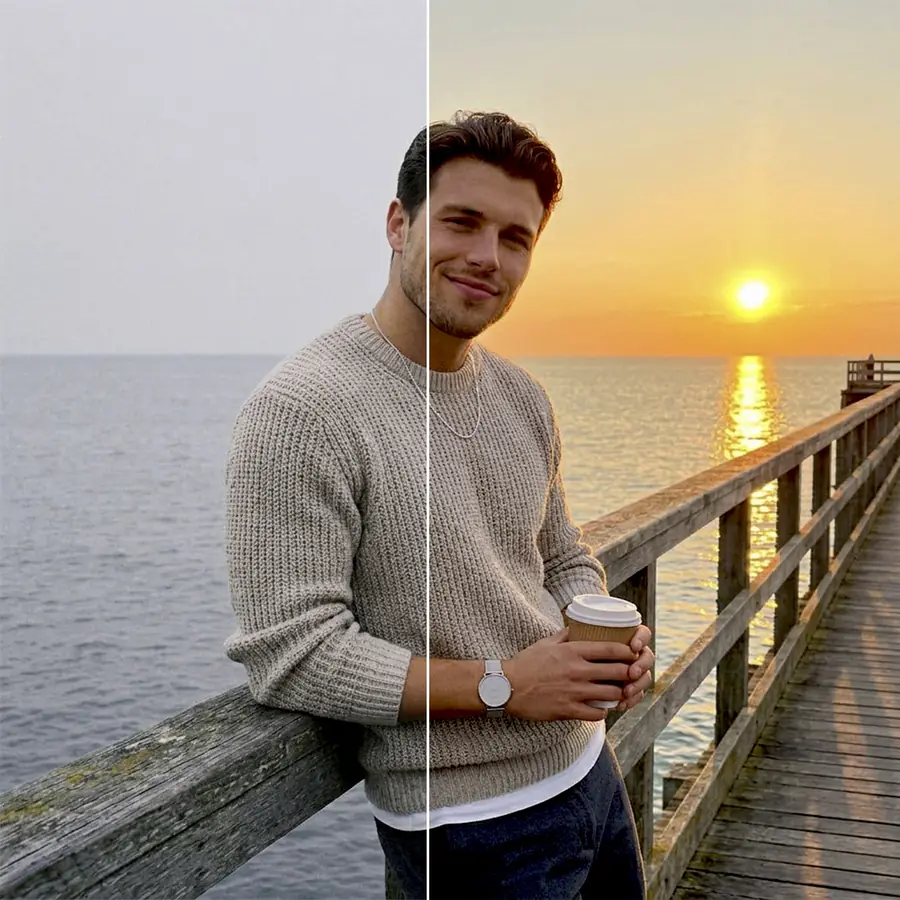
Photo Filter Ties the Scene to the Sky
A new sky changes the mood of a picture, while the ground, faces, and walls still carry the color of the light you shot in. Photo filter closes that gap by applying the color grade of the chosen sky to the whole photo.
How much it changes depends on the sky. Sunsets and the sunbeam sky warm the image, storm skies cool and darken it, and blue daytime skies leave the colors almost as they were. Raise the filter when the new sky is far from the old one, such as a sunset over a photo taken at noon. Lower it if the skin starts to look too orange or too gray.
Change the Sky Behind a Portrait
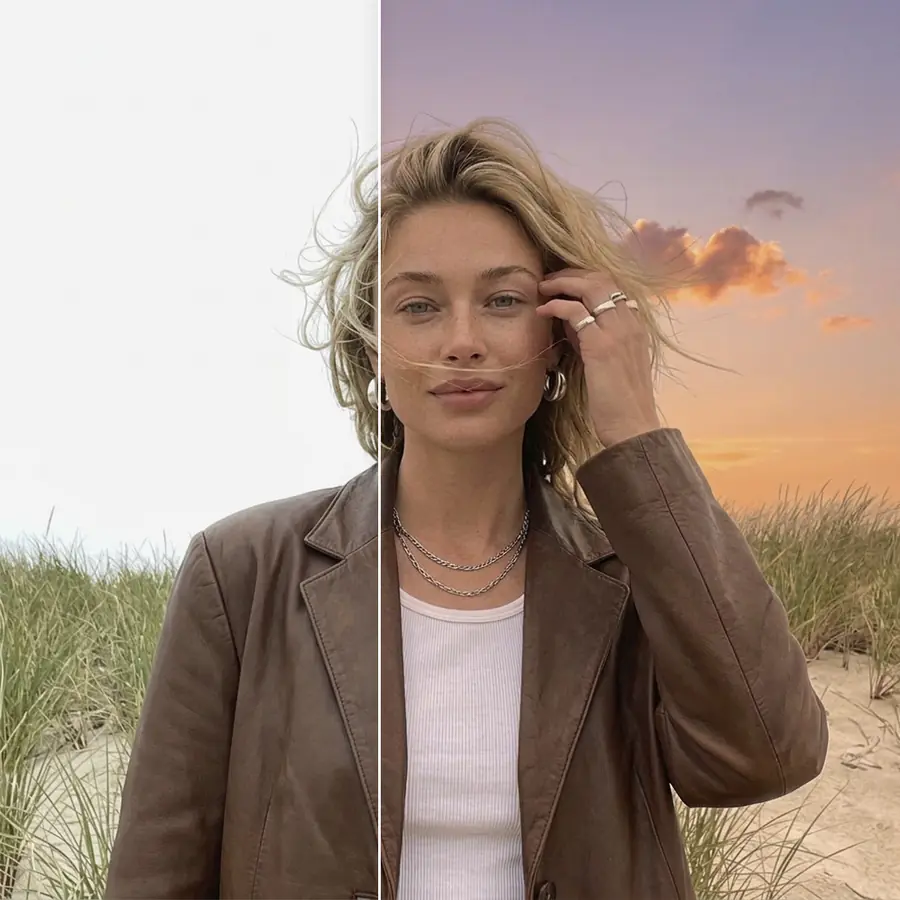
Before replacing the sky, the tool detects the people in the frame and keeps them in front, so the new clouds don't end up over someone's hair or shoulders.
A portrait is also more forgiving than a landscape, since the sky fills a small area behind the head and viewers look at the face first. A sunset sky with a photo filter raised a little warms the skin too, which makes the swap more convincing. Check the hairline at full size: loose strands against a bright sky are usually the trickiest edge in any sky replacement.
Pick a Sky That Fits the Light You Had
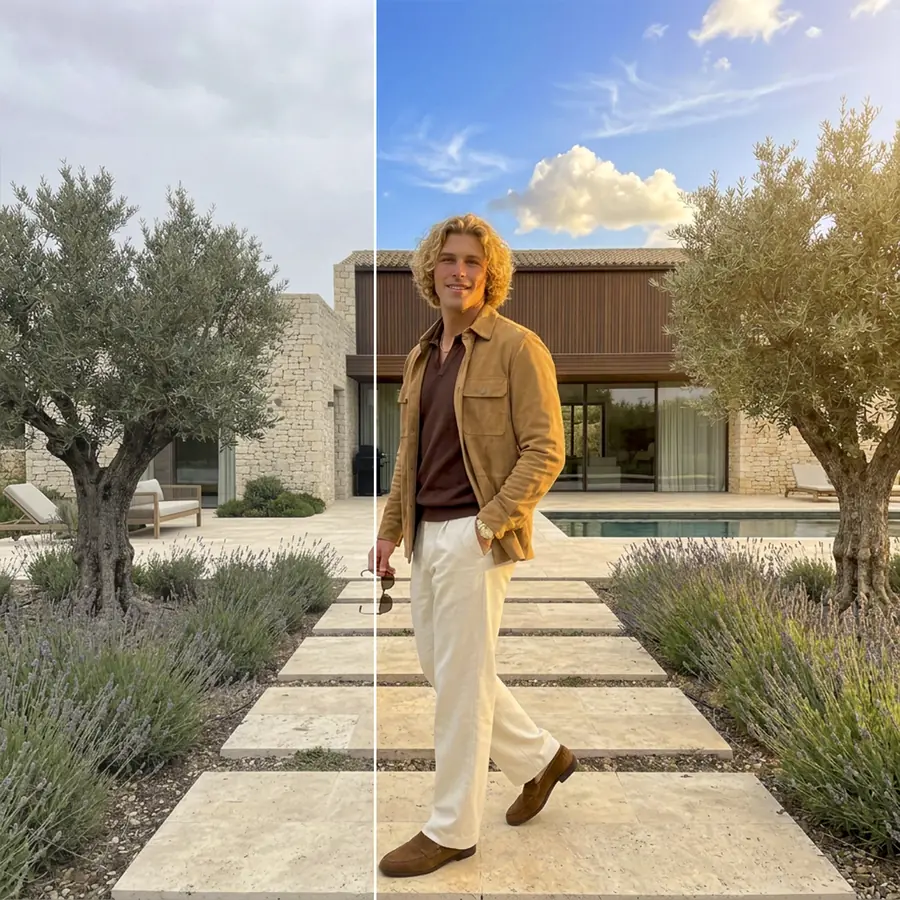
The tool changes the sky and the overall color. It doesn't relight the scene: shadows stay where they were, and reflections in water, windows, and sunglasses still show the old sky.
So look at the shadows before you choose. Hard, dark shadows mean the photo was taken in direct sun, which suits the clear blue skies (N3, N7, N9) and the sunbeams of N12. Soft, barely visible shadows point to an overcast day, and the storm skies (N5, N6) or the pastel clouds of N8 fit them better. When a lake or a glass facade fills a large part of the frame, choose a sky close in color to the original, since the reflection will keep the old one.
When a Full Swap Is Too Much
Sometimes the old sky only needs a bit of color. Lower Sky opacity and the new sky mixes with the original, adding a hint of blue or sunset tone while the weather in the photo stays the same.
Thin objects against a bright sky, such as antennas, wires, and bare branches, can keep a light outline after the swap. A slightly lower Sky opacity or a calmer sky makes it less visible.
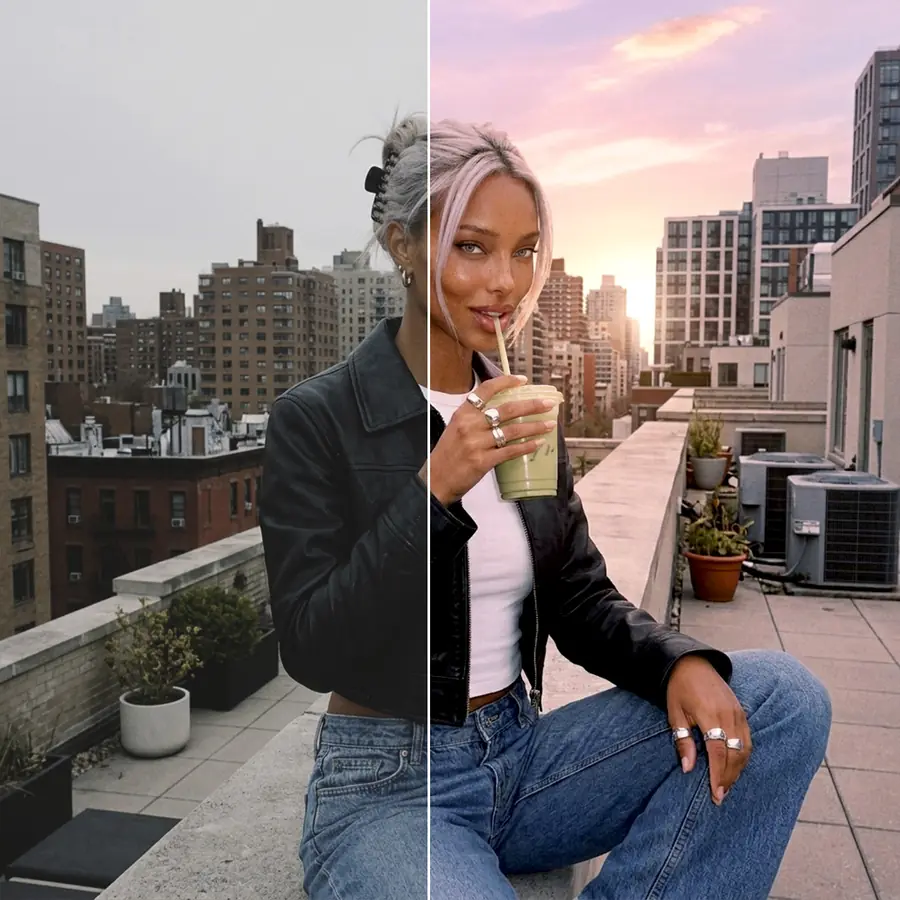
Replace Sky in Photo Online, Free to Try
The sky tool works in a browser tab with no app to download.
Finish the Photo with Other Facelab Tools
A new sky often calls for small changes elsewhere in the frame. Photo Color Correction evens out exposure and white balance after the swap. Light Effects adds a lens flare or a warm glow on the side where the new sun would be. If wires or a stray branch cut across the sky, remove them with an Object Remover.
What our users say
“I used to spend 20 minutes editing photos by hand. Now it takes 5 seconds. The results look more polished too.”
“Perfect for my e-commerce store. My listings look so much more professional now — and it's instant.”
“I tried every free tool out there. Facelab handles edge cases — hair, fine details — better than anything else.”
“I shoot products on my kitchen table. Facelab makes them look like a proper studio shot every time.”
“Used to outsource at $5 a photo. Now it's instant and free. The quality is identical — clients can't tell.”
“I edit photos for marketing assets in minutes. It completely changed how fast I can ship creative.”


Do more with the Facelab app
Get 25+ AI-powered editing tools, filters, and creative effects — free on iOS and Android.
Sky Replacement: Frequently Asked Questions
How the tool finds the sky, what the 12 skies look like, and what to check before you save.
How does Facelab's sky replacement work?
The tool finds the sky in your photo and, separately, the people in it. It replaces only the sky, keeps people in front, and softens the border between the new sky and the rest of the image. After that, you fine-tune the result with Sky opacity, Photo filter, Scale, and Rotation.
Can I replace the sky in portraits as well as landscapes?
Yes. People are detected separately and stay in front of the new sky, so the tool handles outdoor portraits and selfies as well as landscapes and city shots. Check hair against the sky at full size before saving.
Will the new sky match the lighting in my photo?
Partly. The photo filter carries the color of the chosen sky across the whole picture: sunsets warm it, storm skies cool and darken it. The tool doesn't move shadows or change reflections in water and glass, so choose a sky that suits the light you shot in.
How many skies can I choose from?
There are 12: three sunsets, two storm skies, six blue daytime skies with different clouds, and one with sunbeams breaking through. The collection doesn't include a night sky with stars.
Do I need Photoshop or masking skills to replace a sky?
No. The tool finds the sky and builds the mask for you. Your part is choosing a sky and adjusting four sliders.
Is sky replacement free to try?
Yes. It works in your browser with no app, and you can try the skies on your photo. The free plan includes 3 edits at full quality with no watermark, and Premium unlocks more edits.
Try Facelab Now!
Virtual makeup, skin retouching, and AI enhancement — free to try right now.
Free to download · No commitment required