

Light Effects Online: 32 Lens Flares, Glows, and Light Leaks
Add a lens flare, a soft light leak, a glow, or a colored wash of light to your photo with Facelab's light effects. There are 32 effects in three sets, and you can resize, rotate, and flip each one and choose whether it covers the whole photo, only the person, or only the background.
Drop your photo here
JPG, PNG, WEBP, HEIC · up to 25 MB
Get 25+ AI-powered editing tools, filters, and creative effects — free on iOS and Android.


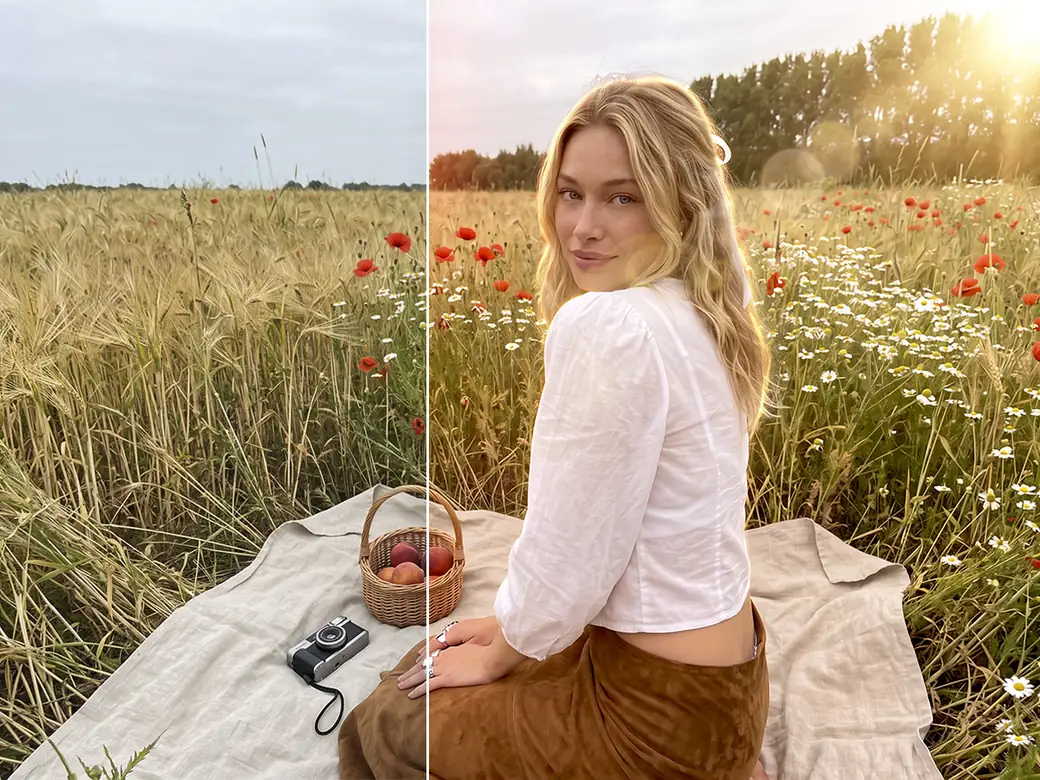
Use them to warm up a portrait, suggest sun coming in from the side, or add sparkle to a winter photo. Everything works in your browser, so there's nothing to install.
How to Add Light Effects to a Photo Online

Step 1
Upload a Photo
Pick a JPG, PNG, or WEBP file.

Step 2
Open a Set and Tap an Effect
Spring, Gradients, and Winter each open their own grid. Tap a thumbnail to see the effect on your photo.

Step 3
Place the Light
Intensity sets the strength, Scale the size, and Rotation the angle. Flip mirrors the effect, and Area decides where it appears: All, Foreground, or Background.

Step 4
Apply and Download
When the light sits where you want it, apply the edit and save the photo as PNG, JPEG, or WebP.
Every effect starts at 100% intensity. Lowering it is often the first adjustment worth making, especially on close-up portraits.
Explore more Facelab tools
AI Make Up Editor
Apply virtual lipstick, eyeshadow, and blush instantly.
Open Tool →AI Hairstyle
Try any hairstyle and color — from subtle to bold.
Open Tool →Object Remover
Erase unwanted objects from photos with AI precision.
Open Tool →Background Remover
Remove any background in seconds with AI precision.
Open Tool →Watermark Remover
Erase watermarks and logos from any image instantly.
Open Tool →AI Teeth Whitening
Brighten your smile with realistic whitening in one tap.
Open Tool →Eye Color AI Editor
Change eye color naturally — any shade, any photo.
Open Tool →Image Upscaler
Enlarge photos up to 4× without losing quality.
Open Tool →Body Editor
Slim, reshape, or adjust body proportions with AI tools.
Open Tool →Skin Retouch
Smooth skin, reduce blemishes, perfect your complexion.
Open Tool →Face Shape Editor
Subtly reshape facial features with natural precision.
Open Tool →Resizing Image
Resize photos to any size without quality loss.
Open Tool →Instagram AI Photo Editor
Edit photos for Instagram with one tap AI presets.
Open Tool →Sky Replacement
Swap a dull sky for a sunset or storm clouds.
Open Tool →Background Blur
Blur the background like a portrait lens, or add bokeh.
Open Tool →Light Effects
Add light leaks, flares and a warm glow.
Open Tool →Photo Textures
Lay film grain, dust or paper over any photo.
Open Tool →Photo Color Correction
Fix exposure, color and tone with 16 dials.
Open Tool →32 Light Effects in Three Sets
- Spring (8): four two-tone light washes and four lens flares, including a violet flare with light orbs, golden and pink starbursts, and orange-red sun rays
- Gradients (15): a round glow, a spotlight, a darkened circle, two kinds of fog, and washes of light from the side or a corner, several of them in blue, gold, teal, pink, orange, or violet
- Winter (9): beams of light from above with sparkles, a pink-violet light leak, golden glitter, a glowing frame, a color wash, and four kinds of bokeh
Presets are labeled by set and number, from SP1 to WM9, so the thumbnails are the quickest guide. Spring holds the classic flares, Gradients shape light across the frame, and Winter leans toward sparkle and bokeh.
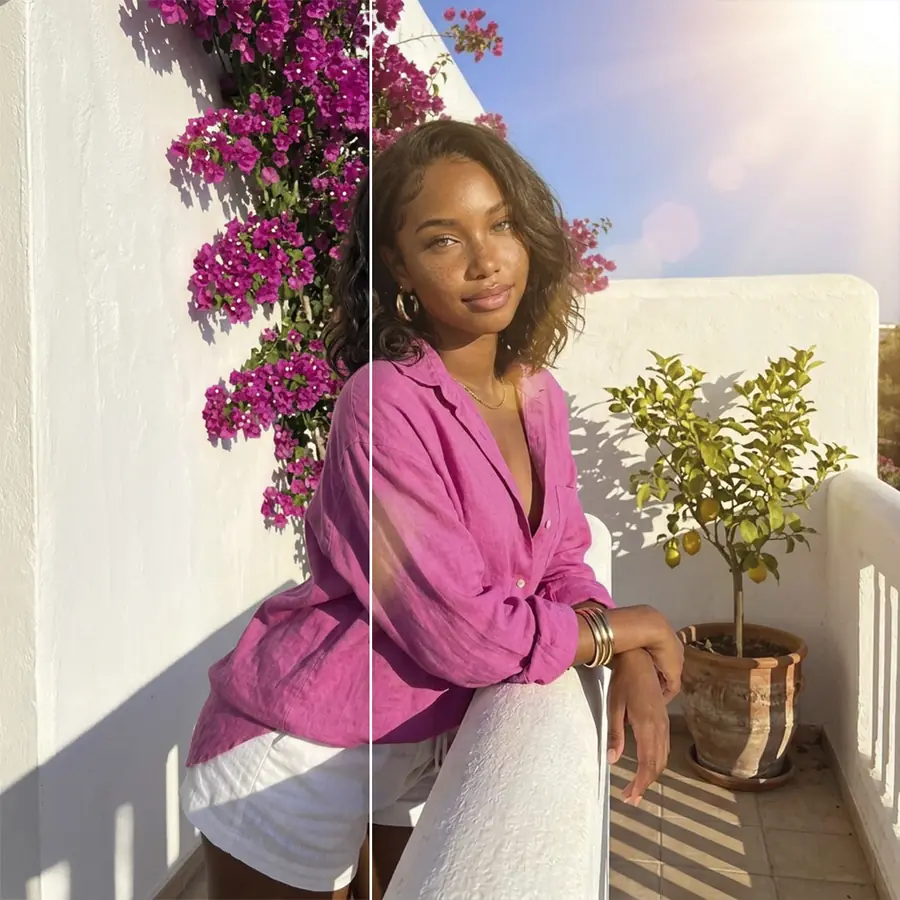
Put the Light Where It Comes From
A flare looks believable when it sits on the side of the frame where the light source is. If the sun or a window is on the right of the original photo, a flare coming from the left will look added. Flip mirrors the effect in one tap, and Rotation turns it to follow the angle of the light.
Shadows tell you where the source is. They fall away from the light, so the flare belongs on the opposite side. In a photo taken in flat, overcast light, with no clear source at all, a soft wash from Gradients is more believable than a sharp starburst.
On the Person or Behind Them
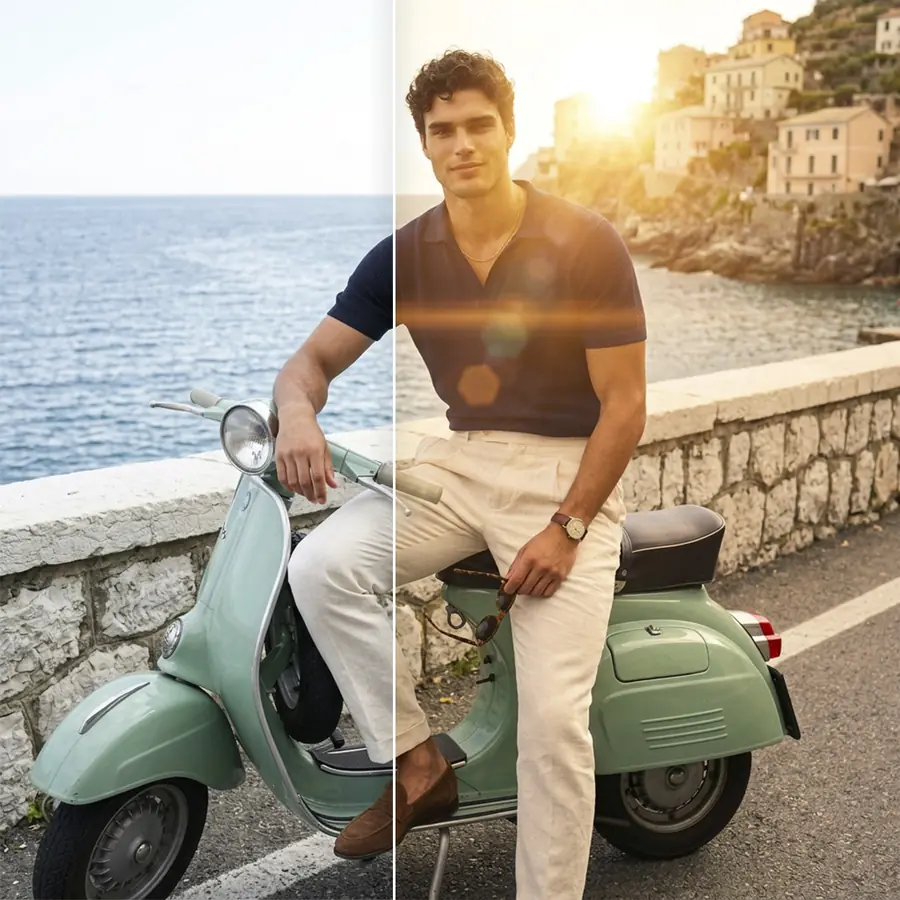
The Area setting uses person detection to decide where the effect goes. All covers the whole frame, the way real light would. Foreground limits the effect to the person, which suits a warm glow on the face and shoulders. Background keeps it behind the person, so a strong flare or glitter brightens the scene without washing out skin.
For bright flares and bokeh in portraits, Background is usually the safer choice. Light added over the eyes lowers contrast on the face, and the face is where people look first.
Gradients Shape the Light in the Frame
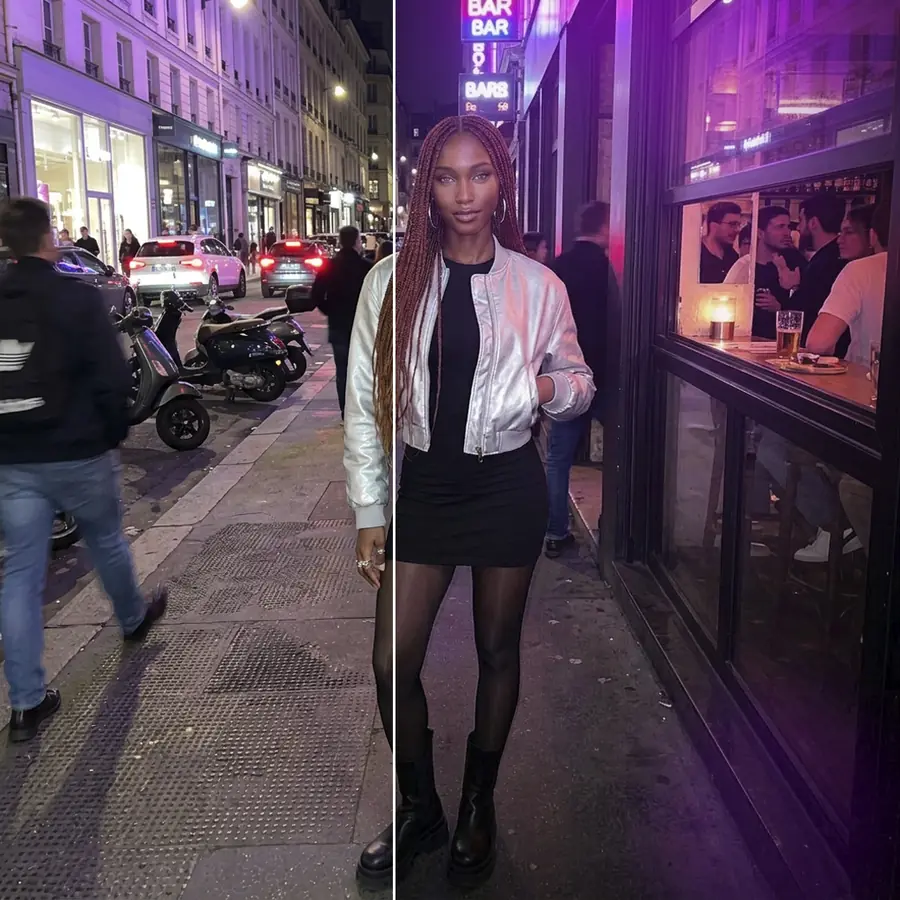
Most of the Gradients set adds light, and two effects take it away. The darkened circle and the spotlight darken the surroundings and pull attention to the subject, which helps a portrait against a busy background. The two fog effects soften contrast like haze, and the round glow adds a soft bright spot.
The rest are washes of light from one side or a corner, many of them colored. Pick a wash close to the color of the light already in the photo: gold for late sun, blue or violet for dusk or neon signs. Keep Intensity lower when a colored wash crosses a face, since it tints the skin along with everything else.
How Strong Should the Effect Be?
Light effects are easy to overdo, and one check helps. After applying an effect, look at the brightest part of the face. If it has turned flat white or lost its texture, lower Intensity or move the light away with Scale and Rotation. Highlights on hair and light-colored clothes deserve the same check.
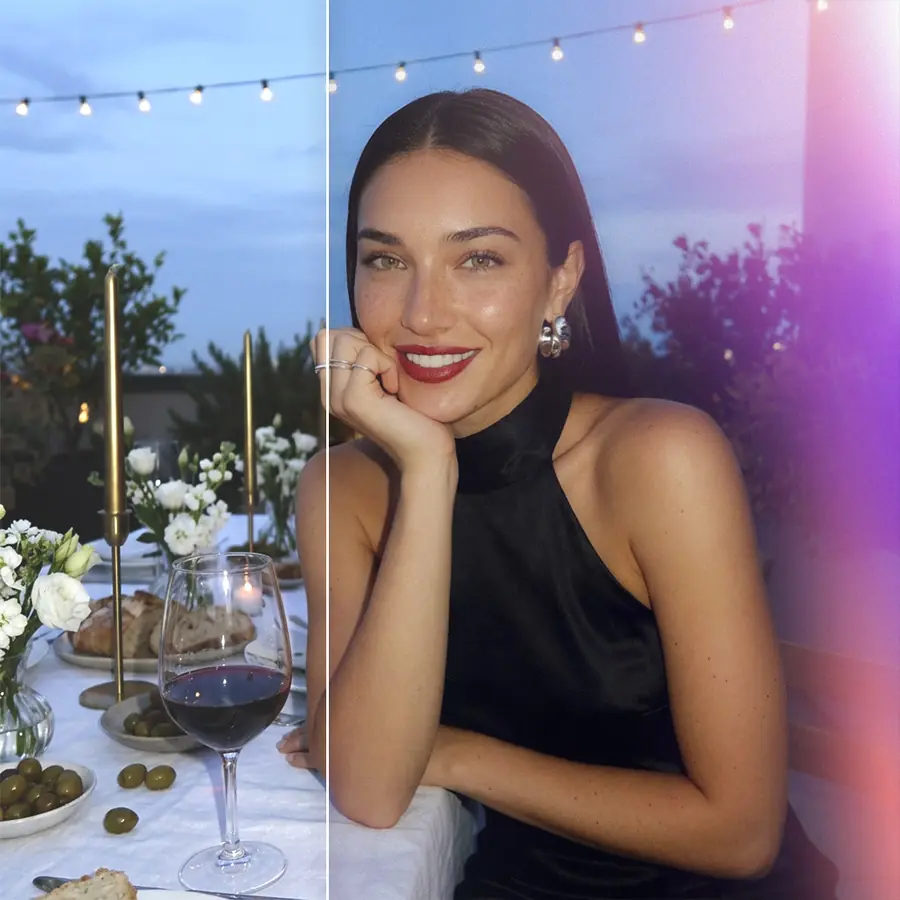
Add Lens Flare to Photo Online, Free to Try
Light effects work in a browser tab, so there's no app to download. You can try all 32 effects on your own photo.
Keep Going with Other Facelab Tools
Light leaks pair well with film grain and dust from Photo Textures for an analog look. Background Blur softens the scene behind you before you add a glow. After a strong effect, Photo Color Correction brings exposure and color back into balance.
What our users say
“I used to spend 20 minutes editing photos by hand. Now it takes 5 seconds. The results look more polished too.”
“Perfect for my e-commerce store. My listings look so much more professional now — and it's instant.”
“I tried every free tool out there. Facelab handles edge cases — hair, fine details — better than anything else.”
“I shoot products on my kitchen table. Facelab makes them look like a proper studio shot every time.”
“Used to outsource at $5 a photo. Now it's instant and free. The quality is identical — clients can't tell.”
“I edit photos for marketing assets in minutes. It completely changed how fast I can ship creative.”


Do more with the Facelab app
Get 25+ AI-powered editing tools, filters, and creative effects — free on iOS and Android.
Light Effects: Frequently Asked Questions
What the 32 effects are, how to place them, and how to keep the result natural.
What kinds of light effects can I add with Facelab?
There are 32 effects in three sets. Spring has two-tone light washes and lens flares. Gradients has a round glow, a spotlight, fog, and colored washes. Winter has beams of light, glitter, a glowing frame, and bokeh.
Do I need to download software to use these light effects?
No. The effects work in your browser with nothing to install.
Will the light effect look natural, or will it look like a sticker?
Placement and strength decide most of it. Put the light on the side where the light source is (Flip and Rotation help), lower Intensity until the face keeps its texture, and use Background to keep bright flares off the person.
Can I use light effects on portraits, or are they just for landscapes?
They work on both. For portraits, the Area setting detects the person, so you can put the light on them (Foreground), behind them (Background), or across the whole frame (All).
Is the Light Effects tool free to use?
Yes, it's free to try in your browser with no app. The free plan includes 3 edits at full quality with no watermark.
Try Facelab Now!
Virtual makeup, skin retouching, and AI enhancement — free to try right now.
Free to download · No commitment required