

Blur Background Online: 24 Effects, from Portrait Mode to Bokeh Lights
Facelab's background blur finds the person in your photo, keeps them sharp, and changes everything behind them. Choose from 24 effects in three sets: classic lens-style blurs, artistic treatments, and glowing bokeh overlays.
Drop your photo here
JPG, PNG, WEBP, HEIC · up to 25 MB
Get 25+ AI-powered editing tools, filters, and creative effects — free on iOS and Android.


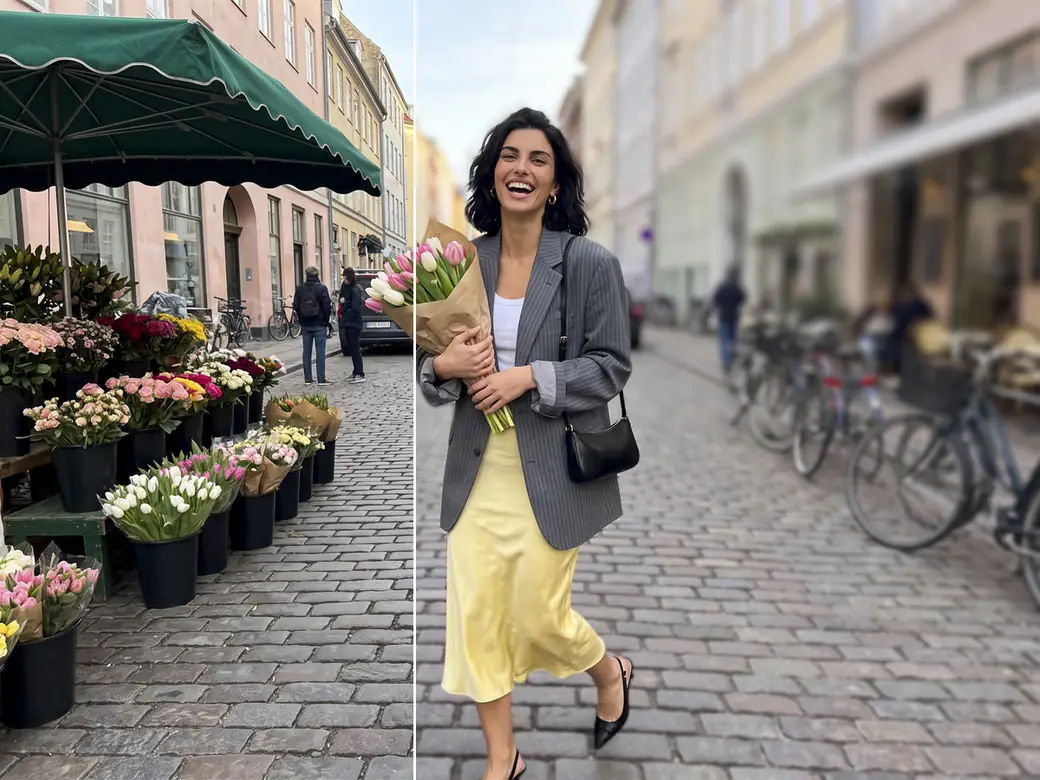
Use it to get the portrait-mode look on a photo taken without it, soften a cluttered room behind you, or add a backdrop of lights to an evening photo. It works in your browser, and you can try every effect on your own photo.
How to Blur the Background of a Photo Online

Step 1
Upload a Photo with a Person
The tool works by detecting the person, so it needs someone in the frame. It accepts JPG, PNG, and WEBP files.

Step 2
Choose a Set and an Effect
Classic holds the lens-style blurs, Artistic the stylized ones, and Bokeh the light overlays.

Step 3
Adjust the Sliders
Every effect has its own sliders, from Intensity and Direction to Ring size, Focus area, or Bokeh opacity.

Step 4
Download
Check hair and shoulders at full size, then apply the edit and save it as PNG, JPEG, or WebP.
Effects open at different strengths.
Explore more Facelab tools
AI Make Up Editor
Apply virtual lipstick, eyeshadow, and blush instantly.
Open Tool →AI Hairstyle
Try any hairstyle and color — from subtle to bold.
Open Tool →Object Remover
Erase unwanted objects from photos with AI precision.
Open Tool →Background Remover
Remove any background in seconds with AI precision.
Open Tool →Watermark Remover
Erase watermarks and logos from any image instantly.
Open Tool →AI Teeth Whitening
Brighten your smile with realistic whitening in one tap.
Open Tool →Eye Color AI Editor
Change eye color naturally — any shade, any photo.
Open Tool →Image Upscaler
Enlarge photos up to 4× without losing quality.
Open Tool →Body Editor
Slim, reshape, or adjust body proportions with AI tools.
Open Tool →Skin Retouch
Smooth skin, reduce blemishes, perfect your complexion.
Open Tool →Face Shape Editor
Subtly reshape facial features with natural precision.
Open Tool →Resizing Image
Resize photos to any size without quality loss.
Open Tool →Instagram AI Photo Editor
Edit photos for Instagram with one tap AI presets.
Open Tool →Sky Replacement
Swap a dull sky for a sunset or storm clouds.
Open Tool →Background Blur
Blur the background like a portrait lens, or add bokeh.
Open Tool →Light Effects
Add light leaks, flares and a warm glow.
Open Tool →Photo Textures
Lay film grain, dust or paper over any photo.
Open Tool →Photo Color Correction
Fix exposure, color and tone with 16 dials.
Open Tool →24 Effects in Three Sets
- Classic (5): Blur, Motion Blur, Zoom Blur, Bokeh Blur, and Tilt-shift
- Artistic (3): Artistic, Splashes, and Pixellate
- Bokeh (16): Tinsel, Strands, Starburst, Glitters, Sparkles, Hearts, Lights, Bokeh, Confetti, Twinkly, Stars, Baubles, Fireworks, Bubbles, Soapy, and Fumes
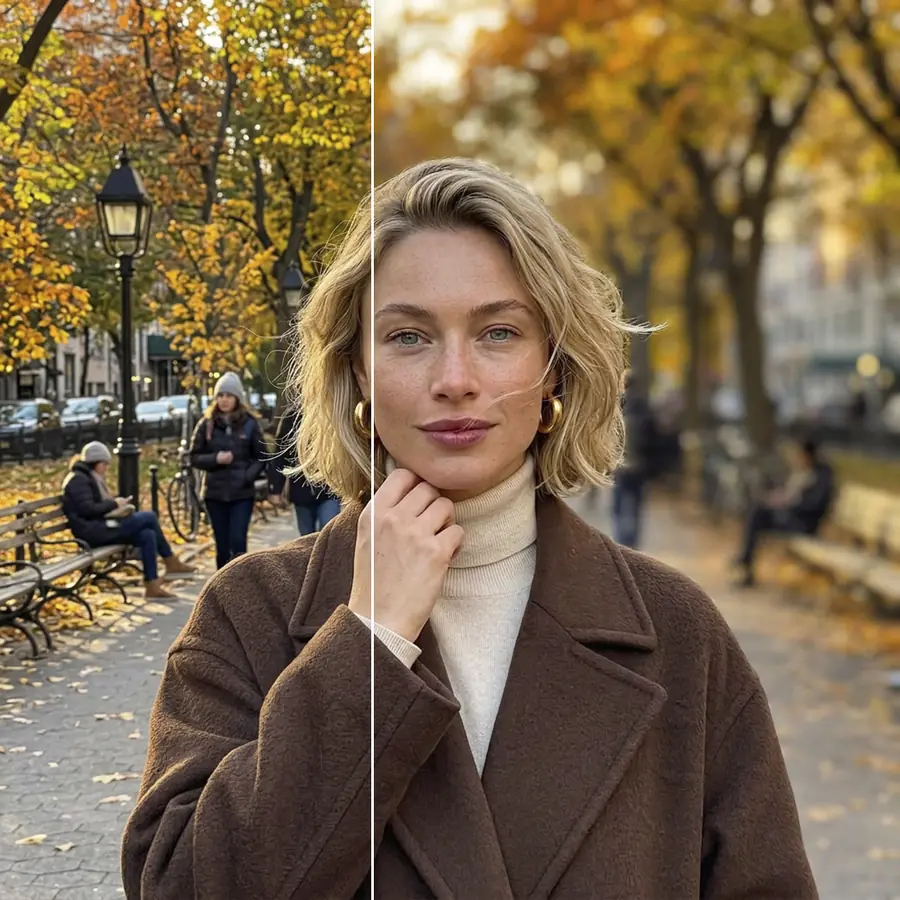
Portrait Mode After the Fact
Phone portrait modes blur the background at the moment you shoot. For a photo taken in the regular camera mode, the Blur effect gives a similar look afterward, from a gentle softening to a fully blurred backdrop.
Match the Blur to the Distance
The tool applies the same amount of blur across the whole background. A real lens blurs distant objects more than close ones, so set the strength by the scene: light blur for a wall a step behind the person, much more for a street or a park stretching far back.
Objects touching the person, such as a chair back or a door frame, need a closer look. Heavy blur on them right next to a sharp shoulder makes the cutout obvious, so keep Intensity moderate in such shots.
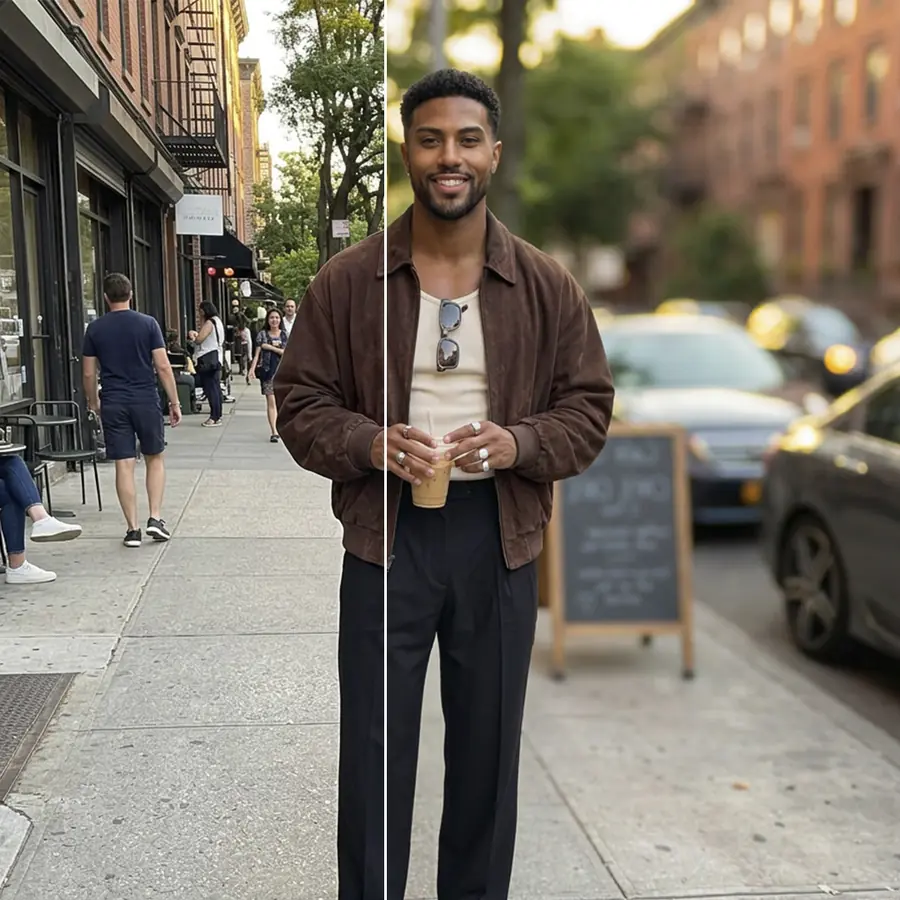
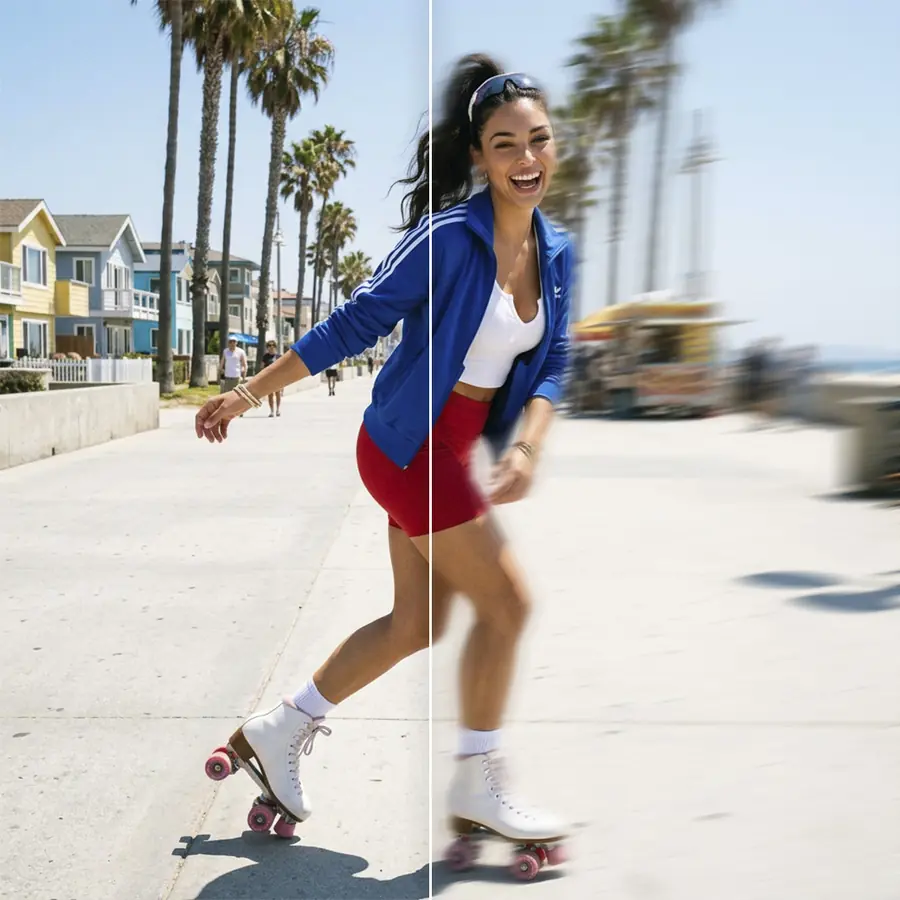
Motion, Zoom, and Tilt-Shift
Motion Blur streaks the background in one direction, set with the Direction slider. It suits photos of runners, cyclists, or anyone on the move, and lining the streaks up with the movement makes the effect read as speed. Zoom Blur sends streaks out from a center point, like zooming the lens while the shutter is open, and Zoom direction shifts that point.
Bokeh Blur turns bright spots in the background, such as street lamps or sun through leaves, into soft circles, and Ring size changes how large they look.
Bokeh Lights Behind the Person
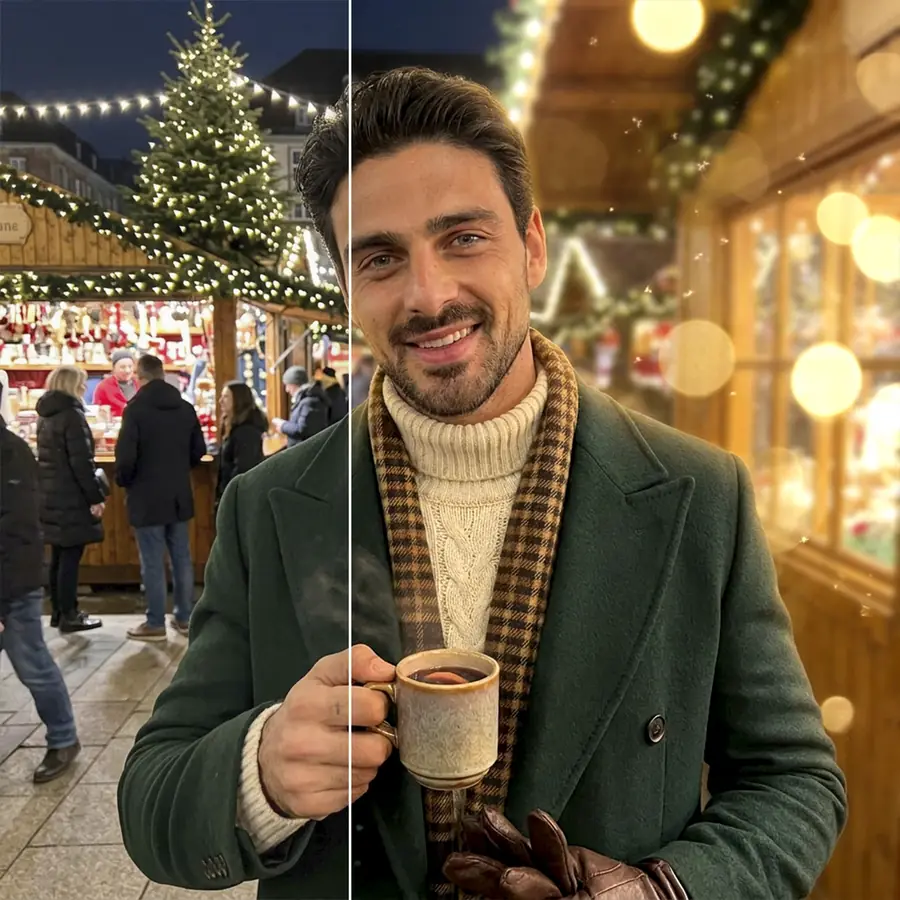
The 16 overlays in the Bokeh set place light behind the person, so the glow stays off the face. Bokeh blur softens the background, Bokeh opacity sets how visible the lights are, and Bokeh zoom changes their size.
Pick the overlay by the color of the light already in the photo. Most of them glow warm gold, which sits naturally in a shot taken under lamps or in late-afternoon sun.
Pixellate for Privacy
Pixellate in the Artistic set breaks the background into squares. Raise Intensity until screens, documents, car plates, or house numbers become unreadable, and you can share a photo taken at home or at work while keeping the surroundings private.
Blur or Remove the Background?
Background Blur keeps the original background and softens it, so the photo still shows where it was taken. When you need the background gone, for a clean cutout or a different backdrop, use Background Remover.
Blur Photo Background Online, Free to Try
The blur works in a browser tab with no app to download, and you can try all 24 effects on your own photo.
Keep Editing with Other Facelab Tools
Blur softens a distracting object but keeps its color, so a bright sign stays noticeable. Remove it first with Object Remover. Light Effects adds flares and glows, and its Background mode keeps them behind you. With the background softened, the face gets more attention, and Skin Retouch can even out the details.
What our users say
“I used to spend 20 minutes editing photos by hand. Now it takes 5 seconds. The results look more polished too.”
“Perfect for my e-commerce store. My listings look so much more professional now — and it's instant.”
“I tried every free tool out there. Facelab handles edge cases — hair, fine details — better than anything else.”
“I shoot products on my kitchen table. Facelab makes them look like a proper studio shot every time.”
“Used to outsource at $5 a photo. Now it's instant and free. The quality is identical — clients can't tell.”
“I edit photos for marketing assets in minutes. It completely changed how fast I can ship creative.”


Do more with the Facelab app
Get 25+ AI-powered editing tools, filters, and creative effects — free on iOS and Android.
Background Blur: Frequently Asked Questions
How the blur keeps the person sharp, which effects are available, and what kinds of photos it works with.
How does Facelab create the portrait mode effect?
The tool detects the person in the photo, keeps them sharp, and blurs everything behind them. The person is left out of the blur calculation, so their colors don't spread into the background as a halo.
What blur styles can I choose from?
There are 24 effects in three sets. Classic has Blur, Motion Blur, Zoom Blur, Bokeh Blur, and Tilt-shift. Artistic has Artistic, Splashes, and Pixellate. Bokeh has 16 light overlays.
What are the 16 bokeh overlays?
Glowing effects placed behind the person: Tinsel, Strands, Starburst, Glitters, Sparkles, Hearts, Lights, Bokeh, Confetti, Twinkly, Stars, Baubles, Fireworks, Bubbles, Soapy, and Fumes. Each one has sliders for Bokeh blur, Bokeh opacity, and Bokeh zoom.
Does the blur run in my browser?
Yes. The effects are rendered in your browser.
Will the blur mess up hair, glasses, or fine edges?
Loose strands of hair are usually the hardest part of any cutout, and glasses frames and earrings are worth a look too, so zoom in before saving. If an edge looks rough, lowering Intensity makes the transition less noticeable.
Try Facelab Now!
Virtual makeup, skin retouching, and AI enhancement — free to try right now.
Free to download · No commitment required